
Every document, in its own format
Word, Excel, PowerPoint, PDF, Hangul (HWP, HWPX), ODT, Markdown, HTML and mind maps. Only what you change is saved; the rest stays exactly as it was.
A free desktop office
Open and edit Word, Excel, PowerPoint, PDF and Hangul documents in one window. Ask in plain words and the AI edits the document itself — and shows you what changed.
Windows · Mac (Apple Silicon, beta) · Linux (x64, beta)
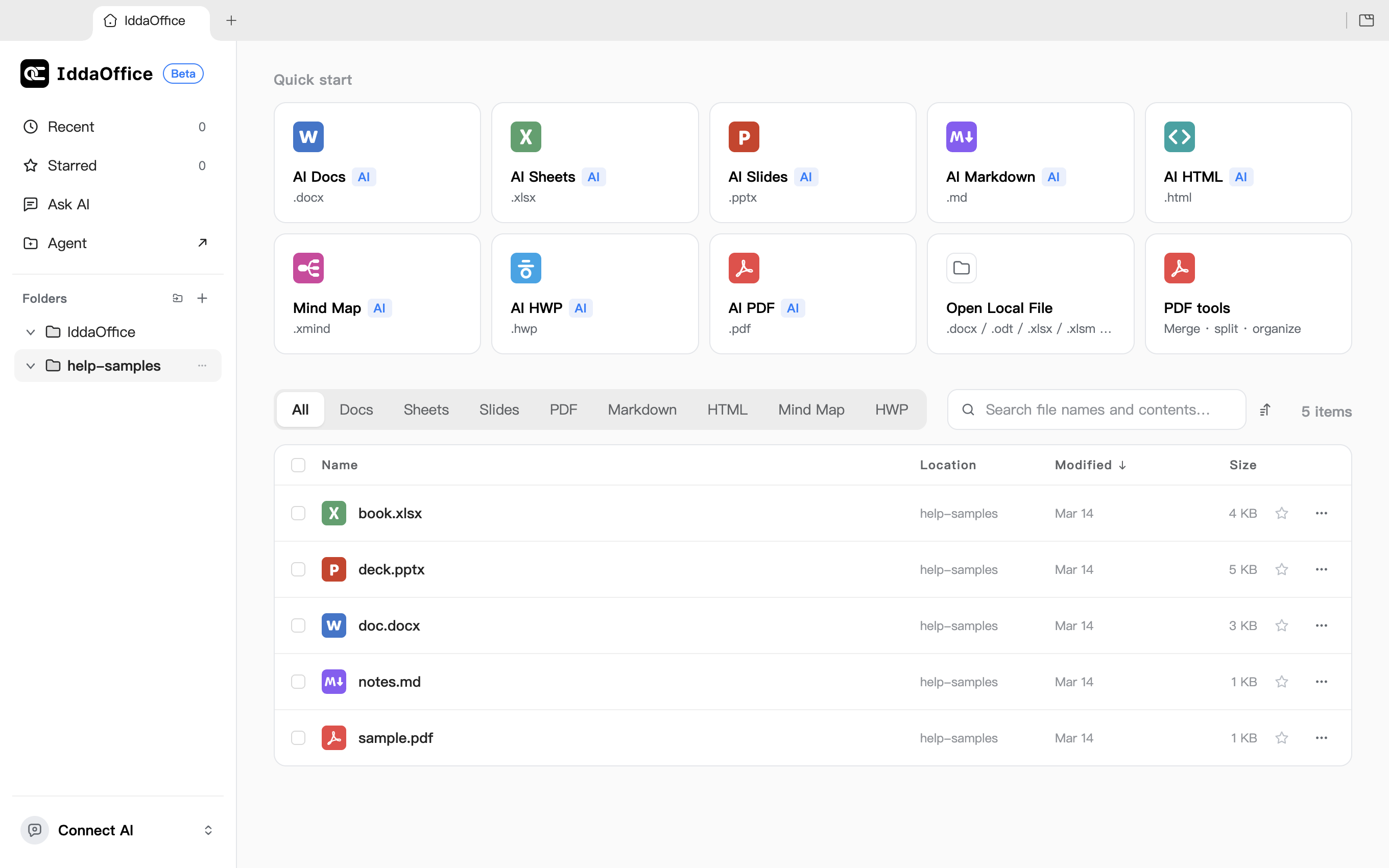
Word, Excel, PowerPoint, PDF, Hangul (HWP, HWPX), ODT, Markdown, HTML and mind maps. Only what you change is saved; the rest stays exactly as it was.
Every editor has an AI panel. Ask in plain words, see what changed, and undo anything you don't like.
It uses the Claude or Codex subscription you already pay for — no API key, nothing to pay IddaOffice. No subscription? Connect a free AI.
Edit text, convert to Word or Excel, read scanned pages, translate whole documents, shrink files and add passwords.
Turn the documents you collected into a slide deck, an HTML page or a mind map. Twelve slide design templates included.
The iddaoffice command line and MCP server let agents like Claude Code and Codex read, create and edit the same documents.
Work together (optional)
Turn it on in Settings and sign in with Google to get shared spaces. While it is off, nothing goes to the server.
Your own space, your team spaces, and documents shared with you.
Everyone sees who is editing, and every save goes up as a new version. Nobody's save is overwritten.
Invite teammates by e-mail, or share a single document to view or edit.
Your documents stay on your PC. No usage statistics, and AI requests go out under your own account only when you ask. Collaboration uses the server only when you turn it on.
IddaOffice is free.
Apple Silicon (M1 and later) · macOS 12 or later · beta
Download for MacComing soon
Windows 10 and 11 (64-bit)
Download for WindowsComing soon
x64 · AppImage, deb, rpm · beta
Download AppImageComing soon
The app is not signed yet, so you will see a warning the first time. On Windows choose "More info → Run anyway"; on a Mac go to System Settings → Privacy & Security and choose "Open Anyway".